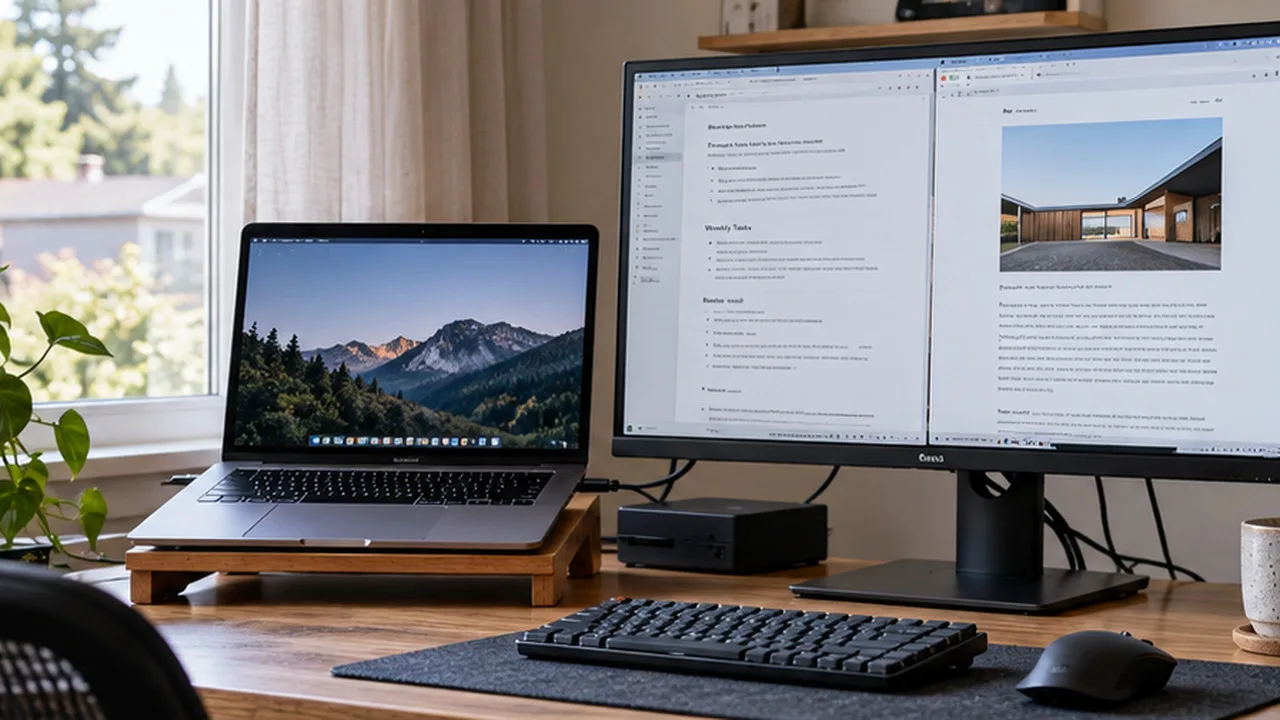
A reliable remote work desk setup is built in the order you would troubleshoot it: computer and power first, network second, one working display third, then the devices that make a long workday comfortable. Test each connection before adding another. That simple sequence makes it easier to identify a failure without replacing equipment that still works.
The objective is not a desk with the most ports, screens, or cable organizers. It is a desk you can return to after a brief power interruption, a dropped call, or a stubborn monitor without spending an hour untangling what went wrong.
Build a Minimum Working Desk Before a Finished Desk
Start by naming the work the space must handle. A freelancer reviewing documents needs different equipment from a designer moving large project files or someone hosting consecutive video calls.
Layer | Connect and verify | Why it comes here |
|---|---|---|
1 — Essential | Laptop or desktop, correctly rated power | Everything else depends on a running computer |
2 — Access | Wi-Fi or Ethernet, required account access | Working locally is not the same as being connected |
3 — Visual | One primary monitor, if needed | Establish a known-good video connection |
4 — Control | Keyboard, mouse, headset | Verify essential input and communication |
5 — Expansion | Dock, second monitor, drives, extras | Additional connections add possible failure points |
If meetings are your business, move the headset into the essential layer. If you edit video from an external SSD, storage belongs there too. The ranking should reflect what actually stops your work, not an idealized picture of a home office setup.
1. Prove the Computer Can Run on Its Own
Connect the computer using its supplied charger or a manufacturer-approved compatible replacement. Verify that the power source provides the appropriate output and that the connector fits without strain.
Open a typical workload and watch the battery indicator for several minutes. If the battery drains while the laptop is supposedly charging through a dock, disconnect the dock and test the original charger directly. The difference can point toward an insufficient power-delivery path rather than a failing computer battery.
Keep plugs accessible, avoid crushed cords under chair wheels, and do not connect power strips in a chain. A desktop computer in a location with frequent short outages might justify a properly sized UPS; a laptop with a healthy battery may already have useful short-term power continuity.
2. Test Connectivity Where the Work Happens
A speed-test result taken beside a router does not prove the connection will hold at the desk. From your normal chair, join a real-time call, open a shared document, and try an ordinary upload.
Where practical, Ethernet removes the variable of Wi-Fi reception between the computer and router. It cannot repair an outage at the internet provider, but it can help you isolate whether the wireless link is part of the problem.
For work that cannot tolerate a disconnected meeting, check whether your phone plan permits tethering and whether cellular reception reaches your workspace. Test the backup route before relying on it.
3. Connect One Monitor Directly—and Make It Comfortable
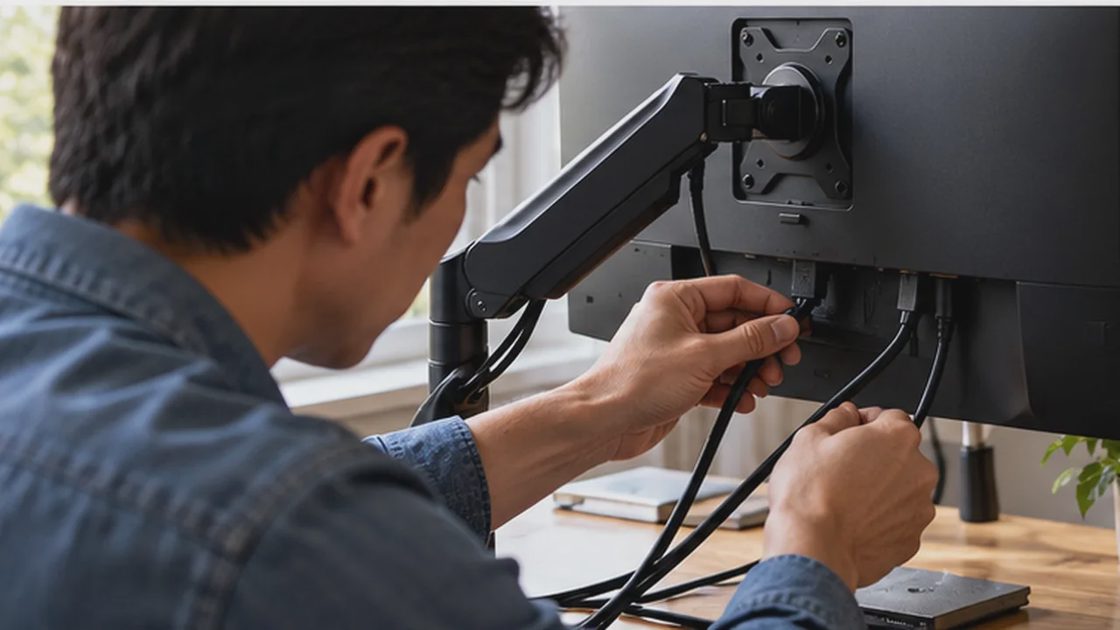
Before choosing an expensive docking station, identify the computer's actual display capabilities. HDMI, DisplayPort, USB-C, and Thunderbolt labels do not guarantee identical features. A USB-C port might support data without video output, and even ports that support video can differ in resolution, refresh rate, and charging support. Manufacturer documentation for specific docks illustrates why both DisplayPort video capability and Power Delivery must be checked separately (Anker dock compatibility FAQ).
Use a compatible direct connection for the primary external monitor first. Confirm that the intended resolution appears, text is readable, audio goes to the expected device, and the picture returns after sleep and wake. Only after this works should you test an adapter or dock in the same path.
Position the screen in front of your usual working position, not off to one side because the cables look tidier there. OSHA suggests a typical viewing distance of 20–40 inches and placing the top of the monitor at or below eye level; your vision, screen dimensions, and posture may require adjustments (OSHA monitor guidance).
When a second screen is worth connecting
A multi monitor setup is useful when you constantly compare sources, keep a reference visible while editing, or monitor a call alongside the work itself. But an extra display also consumes desk depth and may exceed a laptop's supported external-display count.
If two screens are part of your workflow, verify model-specific display limits and dock support before buying a second monitor. Should the new screen fail, try it directly with the laptop using a known-compatible cable. If it works directly but not through the dock, investigate the dock's documented limitations instead of returning a functioning monitor.
4. Add Keyboard, Mouse, and Call Equipment
An external keyboard and mouse can make an elevated laptop practical, provided their placement fits your body. Keep the keyboard straight ahead, the mouse close, and your shoulders relaxed; OSHA also recommends a neutral wrist position rather than bending the hands upward or sideways (OSHA keyboard guidance).
For a Bluetooth keyboard, test reconnection after sleep. For a USB receiver, test the receiver directly if performance becomes unpredictable through a hub. A headset deserves one trial call with its microphone and output selected correctly.
When evaluating a work from home desk setup, I would resist replacing an uncomfortable keyboard until checking desk height and reach. A better position may solve the problem at no cost; if the form factor is genuinely unsuitable, then different hardware becomes reasonable.
5. Make a Dock Earn Its Place
A laptop docking station setup can reduce the number of daily plug-and-unplug steps, especially when the laptop travels between rooms. It also concentrates several connections into one intermediary. One faulty cable can suddenly affect the monitor, network, and accessories together.
Before buying a dock, write a short requirement list: laptop model, required charging wattage, number and specifications of monitors, USB devices, and whether wired internet is needed. Compare it with the dock manufacturer's compatibility notes, not the presence of a matching-shaped USB-C plug.
If you already own a dock, connect a single display, then keyboard and mouse, then network and storage. Test after every addition. For a laptop that never leaves the desk, two straightforward direct cables can be more reliable and easier to diagnose than a large hub chain. Convenience is useful only when it does not create a fragile dependency.
6. Create a Recovery Route for Files and Connections
Even perfect desk cable management cannot prevent data loss. Important working files need backups that remain available if the main computer fails. CISA describes the 3-2-1 backup rule: three copies, two different media types, and one offsite copy (CISA backup guidance). Choose a suitable versioned backup process for your files and verify that it restores an actual test document. Syncing the same accidental deletion everywhere is not necessarily protection.
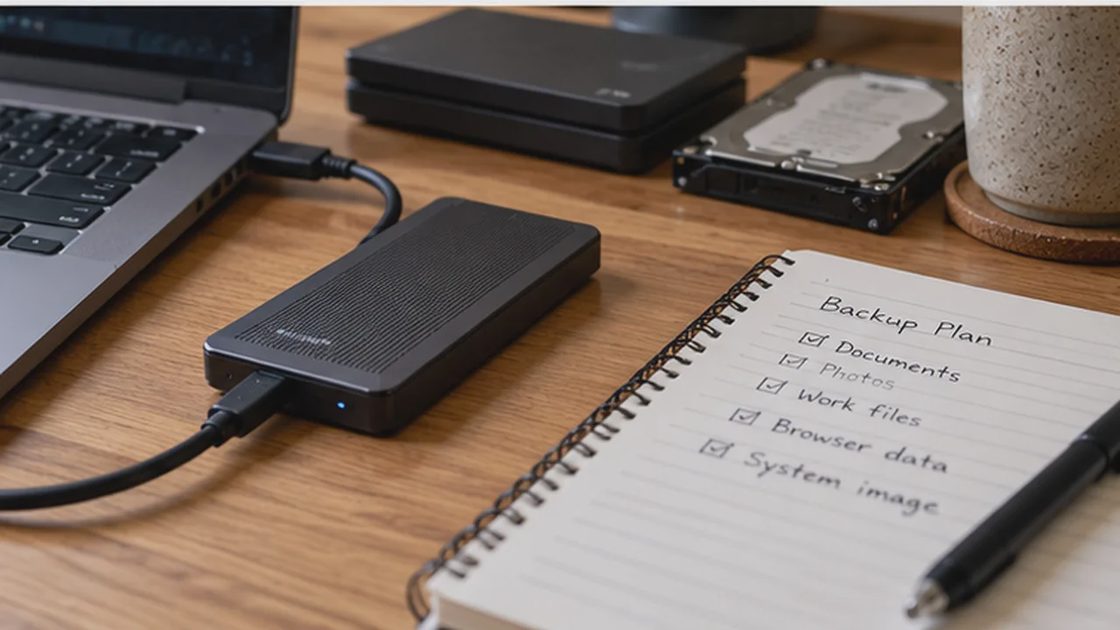
Keep a compact connection record, too. Dorian's equipment-ledger approach suggests a useful format: device model, power adapter, display cable type, dock model if any, and the first direct-connection test to perform. A written note is more practical than remembering which of several nearly identical cables supports the display.
Symptom | Test with fewer components | What the comparison can reveal |
|---|---|---|
Laptop loses charge at the desk | Use the approved charger directly | A dock or power-delivery mismatch may be involved |
External display cuts out | Bypass the dock with a compatible cable | Whether the dock/adapter path is implicated |
Audio drops during meetings | Test another connection or network | Whether local Wi-Fi contributes to interruptions |
Mouse or keyboard disconnects | Reconnect directly or change receiver location | Whether a hub or wireless link is implicated |
A work file disappears | Inspect backup versions before overwriting anything | Whether an earlier recoverable version exists |
These are isolation steps, not guaranteed diagnoses. If a plug, adapter, or battery appears swollen, scorched, or excessively hot, stop using it and get qualified help rather than continuing connection tests.
The Desk Is Ready When It Can Fail Gracefully
You do not need two monitors, a premium hub, or expensive lighting to build a reliable home office setup. You need essentials that work without the optional equipment, accessories whose purpose is clear, and a simple path back when something disconnects.
Before your next workday, unplug the nonessential accessories. Confirm that the computer charges, the internet works, your primary screen displays correctly, and one important file can be recovered from backup. Add peripherals back one at a time.