A slow laptop, an unreliable phone, or a cluttered home office doesn't automatically call for a new purchase. Device maintenance often starts with a simpler question: what is actually failing, and what would make this equipment dependable again? Sometimes the answer is cleaning, updating, backing up, or replacing one worn component. Sometimes buying something new really is the sensible choice.
The important distinction is between a device that has stopped meeting your needs and one that simply needs attention. For remote workers, freelancers, and anyone relying on personal electronics every day, that distinction affects money, time, and the security of important files.
That's the idea behind Device Afterlife: Make it work. Make it last. Not forever, and not at any cost. Long enough to get honest value from the technology you already own.
The Real Goal Is Reliability, Not Maximum Age
Keeping electronics longer is worthwhile only when they remain useful. A six-year-old laptop that reliably handles invoices, video calls, and browser-based work may be a better tool than a newer machine that introduces unfamiliar connections and extra setup. Yet unsupported software can make an otherwise functional computer unsuitable for sensitive work.
Advice on how to make electronics last longer begins with five questions:
Performance: Can it finish the work you actually do without unacceptable delays?
Reliability: Are failures rare, predictable, and manageable?
Security: Does it still receive the updates needed for its intended use?
Repairability: Can common faults be diagnosed and fixed at a reasonable cost?
Compatibility: Does it connect to your current apps, network, and accessories?
A device doesn't earn another year simply by being old and repairable. It earns that year by remaining a practical, reasonably secure part of your daily routine.
Most Replacement Decisions Start With a Symptom, Not a Diagnosis
Imagine a laptop that takes longer to start, runs hot during calls, and barely holds a charge. It's easy to label the whole computer worn out. But those symptoms point to different possible causes: an overloaded startup process, obstructed ventilation, background software, or an aging battery. They should not all lead to the same shopping decision.
A useful electronics maintenance habit is to separate what you can observe from what you assume. “The laptop is slow” is a complaint. “It takes several minutes to become usable after sign-in, while storage is nearly full” is a clue.
Before I would recommend replacing equipment, I'd want three answers: what problem interrupts the work, whether it can be reproduced, and whether a low-risk fix changes it. That approach reflects the support-first mindset at the center of this site. It also keeps a one-time annoyance from turning into an expensive purchase.
At-home checks include storage, updates, cables, and outlets. Other problems require professional help. A swollen lithium-ion battery, damaged power equipment, or a suspected electrical fault is not an invitation to experiment with a screwdriver.

Five Habits That Extend Useful Device Life
A few repeatable checks prevent problems and aid diagnosis.
1. Protect files before fixing hardware
A device can be replaced; missing client records or personal photos may be much harder to recover. Keep automatic backups appropriate to your work, and periodically restore a sample file to verify the backup is usable. A cloud sync folder is helpful, but it isn't automatically a complete backup strategy if deletions or corruption also sync.
2. Keep software supported and current
Operating-system and application updates can address security vulnerabilities, bugs, and compatibility problems. Check whether the device still receives relevant security fixes, rather than relying only on the fact that its apps currently open.
Older hardware may work well for an offline or limited task after it stops being suitable for banking, client documents, or other sensitive activity. The use case matters.
3. Control heat, dust, and physical wear
Basic laptop maintenance tips start with unobstructed ventilation. Keep liquids away from power equipment. Inspect frequently bent cables for fraying, and clean accessible vents and peripherals according to manufacturer guidance. Avoid opening sealed batteries or power supplies unless you have the appropriate expertise and safety procedures.
4. Track recurring faults instead of guessing
Record the device, the symptom, recent changes, and whether a fix held up. If a monitor disconnects only through one dock, that pattern is more useful than the vague conclusion that the monitor is dying.
A handwritten equipment ledger—purchase dates, known faults, repair costs, and current purpose—is a useful way to make decisions traceable without collecting technical details for their own sake.
5. Keep the setup simple enough to maintain
Every extra adapter, utility, charging brick, and account can introduce another failure point. A reliable home office setup doesn't need to be elaborate. Prefer compatible equipment, labeled connections when helpful, accessible backup power where justified, and one known-good spare for genuinely work-critical accessories.
Repair, Upgrade, Replace, or Reuse? A Practical Decision Test
The hardest part of repair or replace decisions isn't finding the price of a component. It's estimating what that expense will actually buy: months or years of dependable use, or just one more round of trouble.
Use this framework before spending:
If the situation looks like this… | Start here | Reconsider when… |
|---|---|---|
One clear, affordable fault; everything else works | Investigate repair | Parts, labor, or safety risks outweigh the benefit |
Machine works but one capability is limiting | Check a supported upgrade | Compatibility is uncertain or improvement is too small |
Repeated unrelated failures or unsupported software | Compare replacement options | A trustworthy, affordable repair resolves the real issue |
Device no longer fits your main work but still functions | Consider a limited second use or resale | Its software or battery condition makes reuse unsafe |
Device is unsafe or beyond economical repair | Retire it responsibly | Never keep using it solely to avoid waste |
A simple cost comparison helps. Suppose a repair costs $180 and reasonably gives a machine another two years of suitable use. That's $7.50 per month of additional use. A hypothetical $720 replacement used for four years averages $15 per month, before resale value, electricity, software, or productivity differences. These numbers are examples, not market price estimates or a promise that either machine will last that long.
The cheaper monthly number doesn't automatically win. Downtime can erase repair savings; new adapters or subscriptions can raise replacement costs. Repair versus replacement cost should include reliability, setup time, and foreseeable compatibility problems—not just the receipt.
The U.S. Federal Trade Commission has also documented how unavailable parts, restrictive product designs, and limited repair information can constrain consumers' options. That means right to repair is a practical ownership issue, not just a slogan: the ability to obtain legitimate repairs influences the value of a device over time.
Second-Life Electronics Should Have a Real Job
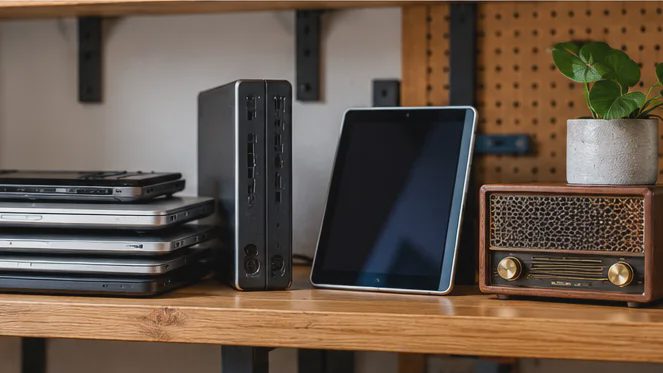
Not every old device needs a creative project. A spare tablet that still securely handles a narrow task may be useful. An obsolete laptop that consumes space and never gets powered on is not necessarily being preserved in any meaningful sense.
For old electronics reuse, choose the job first. Could the device serve as an offline writing machine or reference screen? Is its software supported, and is a replacement battery worth buying?
If there is no good use, selling or donating functioning equipment may be better than keeping it in a closet. For nonfunctional electronics, responsible recycling is the next step. The U.S. Environmental Protection Agency recommends considering reuse and upgrades before disposal, removing personal information, and handling batteries through appropriate recycling channels. Lithium-ion batteries should not be placed in household trash or ordinary recycling bins.
The goal is to get more value from existing resources without turning your home into an electronics warehouse.
Buy Your Next Device With Its Afterlife in Mind
Eventually, replacing technology is the right decision. When that day comes, the maintenance mindset still matters. Look beyond processor speed and launch-day features. Ask whether the manufacturer provides an understandable support policy, whether replacement parts and service are accessible, and whether the connectors and software will fit your setup.
Consider a refurbished electronics option when its condition, warranty, return policy, battery health, and software-support horizon are clear. A low sticker price isn't good value if an uncertain battery or missing accessory makes the purchase unreliable from day one.
Back up before migrating, verify the new setup, sign out of relevant accounts, and follow device-specific instructions for securely erasing personal information before resale or donation.
For a freelancer, the best upgrade might be a new laptop. It might also be a sound battery replacement, a reliable backup drive, or simply removing one flaky dock from the desk. Technology should serve the work, not constantly demand another shopping trip.
A Five-Minute Starting Point
Pick the device you depend on most. Write down its age, its one most annoying problem, whether it receives security updates, and when you last verified a backup. Then choose a single low-risk next step: confirm the backup, check support status, inspect a cable, or request a repair quote.
That small record is the beginning of better ownership decisions. Device Afterlife is built around a straightforward principle: maintain what is worth keeping, replace what no longer serves you well, and make every decision with the full cost in view.